


Supported Products
- Jupiter-Pre
- Jupiter-Post
Purpose and Intended Use of this Command
Configure settings related to saving and loading files.
Command Location
- Japanese environment: Home > Preferences > Preferences > Save/Load
- English environment: Home > Preferences > Preferences > Save/Load
GUI
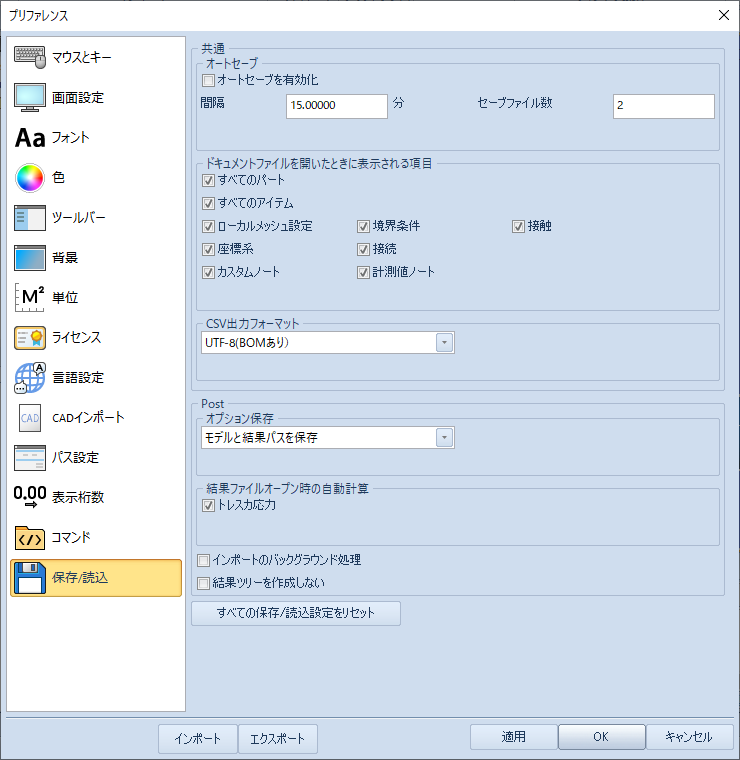
- be common
-
- auto save
-
This function saves open documents in the Temp folder ( %temp%\Technostar) at each specified time.
You can get a backup of the document you were working on in case you exit without saving the document or Jupiter-Pre crashes.
ドキュメントはファイル名_YYYYMMDDHHMMSS.jtdbとして保存されています。
WarningFiles in the Temp folder will be erased when Jupiter-Pre is started. Save files should be retrieved before starting Jupiter-Pre anew.
WarningWhile a file is being saved, it is temporarily placed in standby mode.
- Enable Auto Save – check box
-
Enable the auto-save setting.
- Spacing – Textbox
-
Specifies the save time interval.
- Number of saved files – text box
-
Specify how many files a document should be saved as.
- Items displayed when a document file is opened
-
Controls the initial display state of each tree item in the assembly window when jth5 is loaded or when solver data (ADVC, Nastran, Abaqus) is loaded. Unchecking the checkbox hides the items.
- All parts – check box
-
Show/hide items under all parts.
- All items – checkbox
-
Show/hide all tree items.
- Local mesh settings – check box
-
Show/hide local mesh setting items.
- Boundary conditions – check box
-
Show/hide boundary condition items.
- Contact – check box
-
Show/hide contact items.
- Coordinate system – check box
-
Shows/hides coordinate system items.
- Connection – check box
-
Show/hide connection items.
- Custom Notes – Checkbox
-
Show/hide custom note items.
- Measured value note – check box
-
Show/hide measured value note items.
- CSV output format
-
Select the output format for the CSV file output from Jupiter.
- UTF-8 (without BOM)
-
Sets the output format of CSV files to UTF-8 (no BOM). Default value.
- UTF-8 (with BOM)
-
Set CSV file output format to UTF-8 (no BOM).
BOM(Byte Order Mark)についてThe BOM is data added to the first few bytes of text to determine which type of encoding format is used when a program reads text data.
Microsoft® Excel® and some other applications determine the encoding format by the BOM at the beginning of the CSV file, so a file without a BOM may cause garbled characters.
On the other hand, when reading data in a program, it is up to the programmer to decide whether to use the BOM or not, so programming is easier if the actual data starts from the first byte without a BOM.
- Post
-
Configure settings for Post documents.
-
- Option Save
-
Sets how the results are saved to the Post data file.
- pulldown menu
-
- Save model and result paths
-
Save the model and result paths to Post data (*.poh5).
The behavior is the same as Jupiter V5.0 Post: the Post data size is reduced, but the solver results must be accessed again the next time the Post data (*.poh5) is opened.
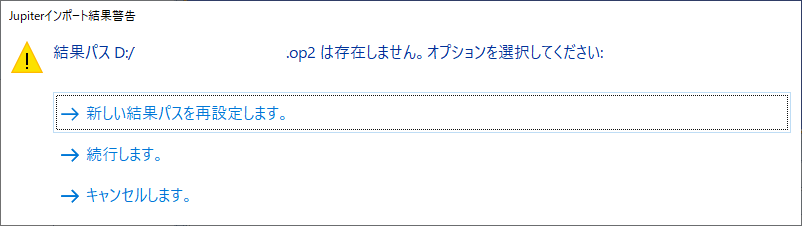
NoteSince the original solver results file is required, deleting or moving the solver results file will result in a warning dialog when opening the file.

- Reset the new result path.
-
Specify a solver results file that has been moved or deleted to load the results again.
- To be continued.
-
Only models are loaded.
If necessary, read the results with the Add Result command. - Cancel.
-
Suspends opening the file.
- Save all data
-
モデルと結果をPostデータ(*.poh5a)に保存します。
The behavior is the same as before Jupiter-Post V4. The next time you open Post data (*. poh5a ), the original solver results file is not needed and access to the results is faster than when opening *.poh5. The Post data size is larger than *.poh5 because it contains the result values.
- Automatic calculation when opening result files
-
Calculates the results checked when the results file is read and adds them to the results tree.
-
- Tresca stress – check box
-
If checked, tresca stresses are calculated and added to the results tree.
- Background processing of import – check box
-
When off, only the model and result title are loaded, and the result data is loaded and displayed in a temporary file when the result title is selected.
When on, all result data is read into a temporary file in the background after the model and result titles are loaded. This improves the display speed when selecting result titles and the performance of commands that use the results of each step.
NoteWhen executing macros/PSJ on Jupiter, command processing is paused until the result importing is completed. When executing macros/PSJ in batch mode, background import processing is turned off.
Operating Procedure
Operating Procedure
- command, specify each option and click the Apply or OK button.